Display discounted prices directly on your Shopify collection pages with the Collection Widget from Discount Depot. The widget shows eligible discounted prices on product cards, helping customers identify available offers while browsing your product collections.
The widget checks whether products qualify for an active discount and displays the corresponding discounted price on eligible product cards.
Note: Add the Collection Widget to each collection template where you want discounted product prices to appear. Depending on your Shopify theme, you may need to configure the Product Card Selector to ensure the widget identifies individual product cards correctly.
Collection Widget Preview
Take a sneak peek at a sample Collection Discounted Price Block in the screenshot below.
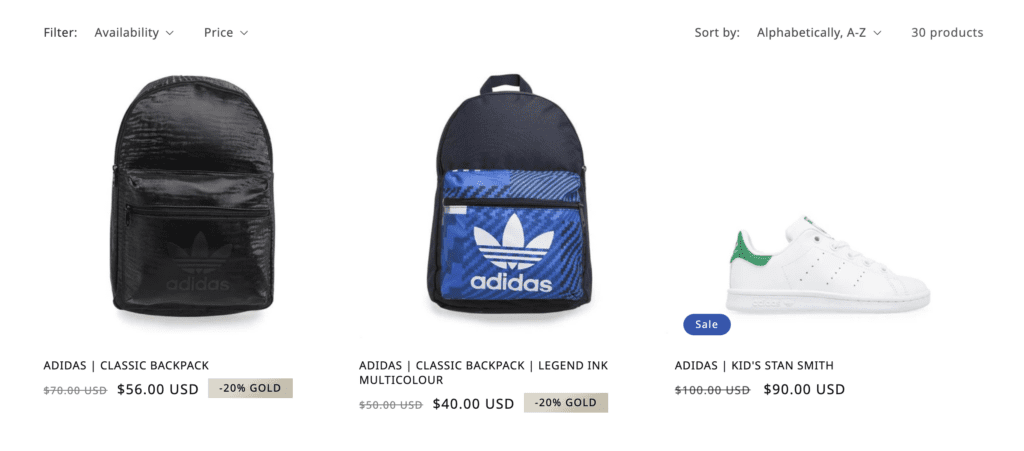
Note: To enjoy the benefits of App Blocks, ensure you are using Online Store 2.0 Shopify themes.
Installation:
Before installing the widget, create and enable a Product Discount rule in the Discount Depot app. Ensure that the collection you use for testing contains products that meet the discount offer’s eligibility conditions
Step 1: Log in to your Shopify Store Admin and open the Online Store section from the left-hand navigation menu.
Step 2: Click the Edit theme button to open the theme editor.
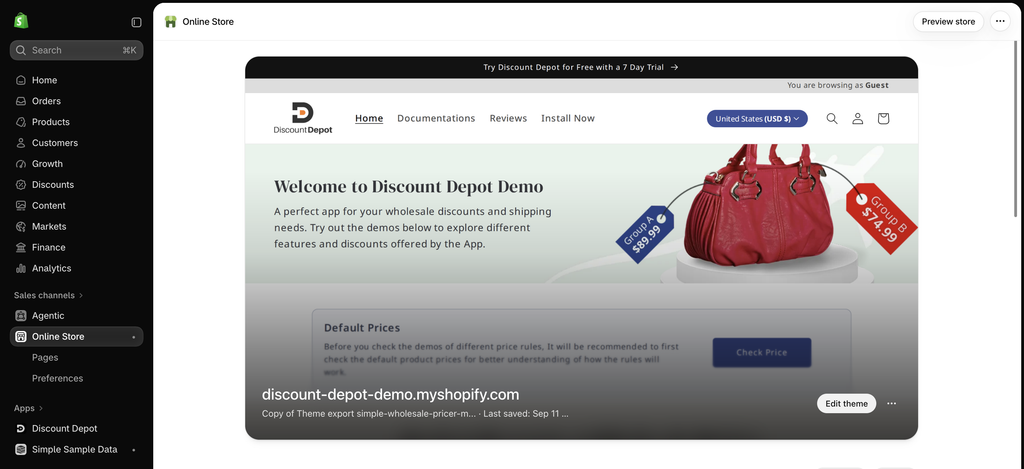
Step 3: Open the product template used by the products included in your discount offer. You can select an eligible product to preview the template.
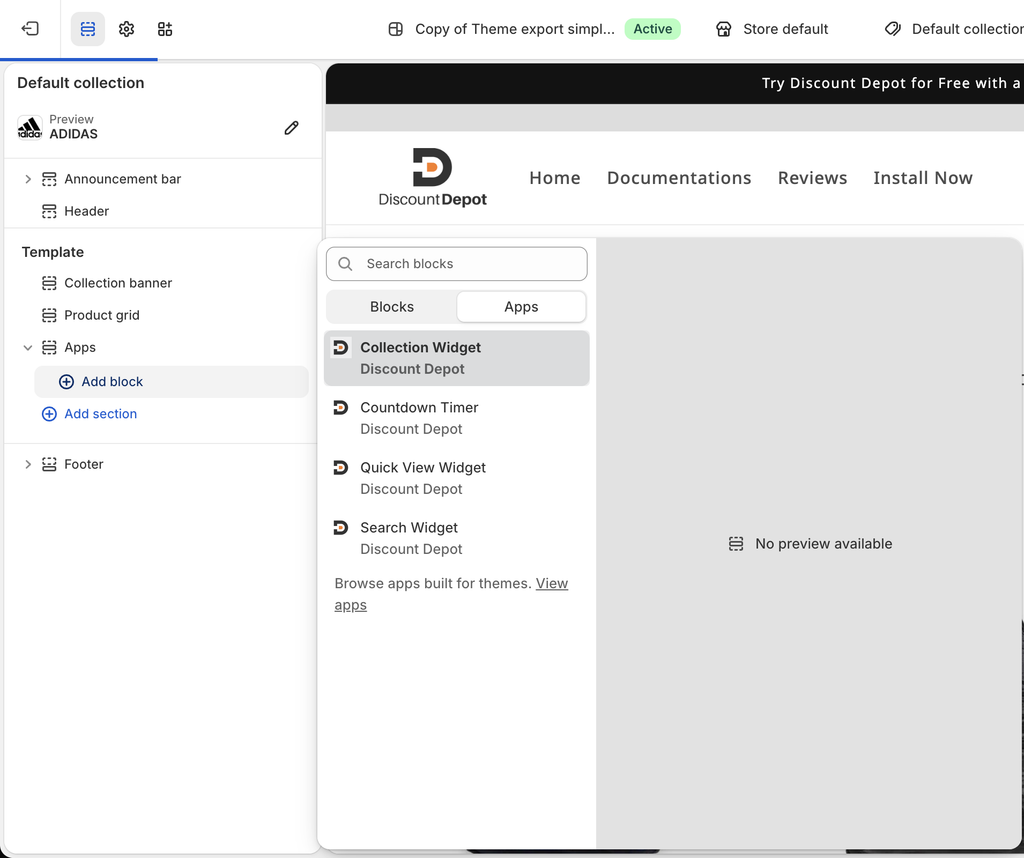
Step 4: In the theme editor, locate the product information section and add the Collection Widget to the product template
Leave the optional selector fields blank initially. This allows the widget to use its default behavior before you configure any theme-specific selectors.
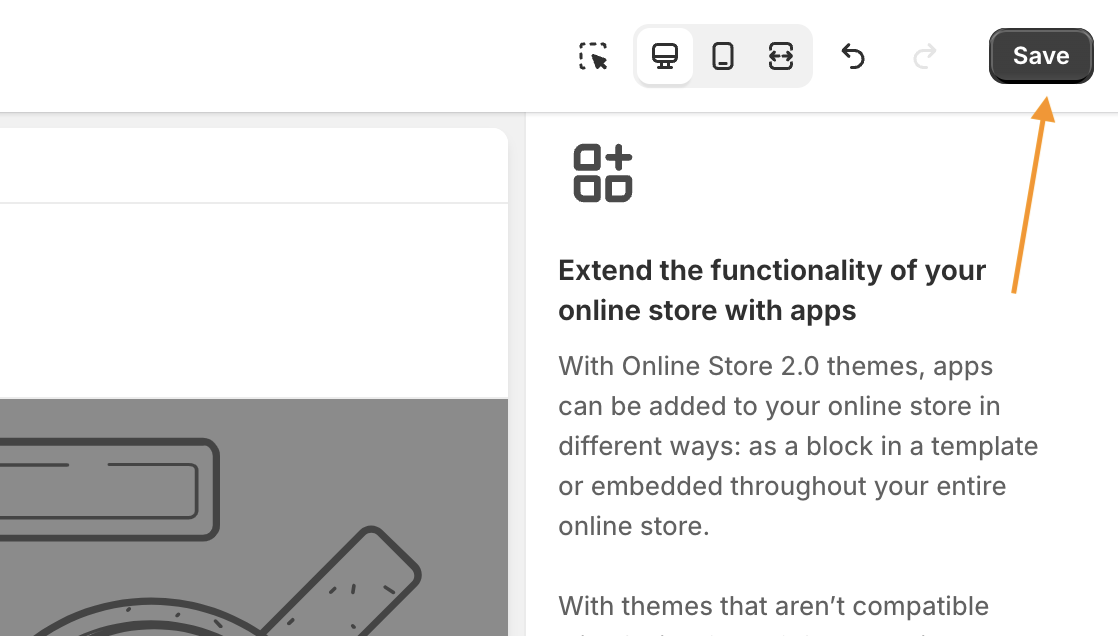
Step 4: Click the Save button in the top-right corner of the theme editor to save your changes.
Step 6: Open the relevant collection page on your storefront and check whether discounted prices appear on eligible product cards.
If your theme supports product filtering, sorting, or loading additional products, test these functions to verify that discounted prices continue to display correctly.
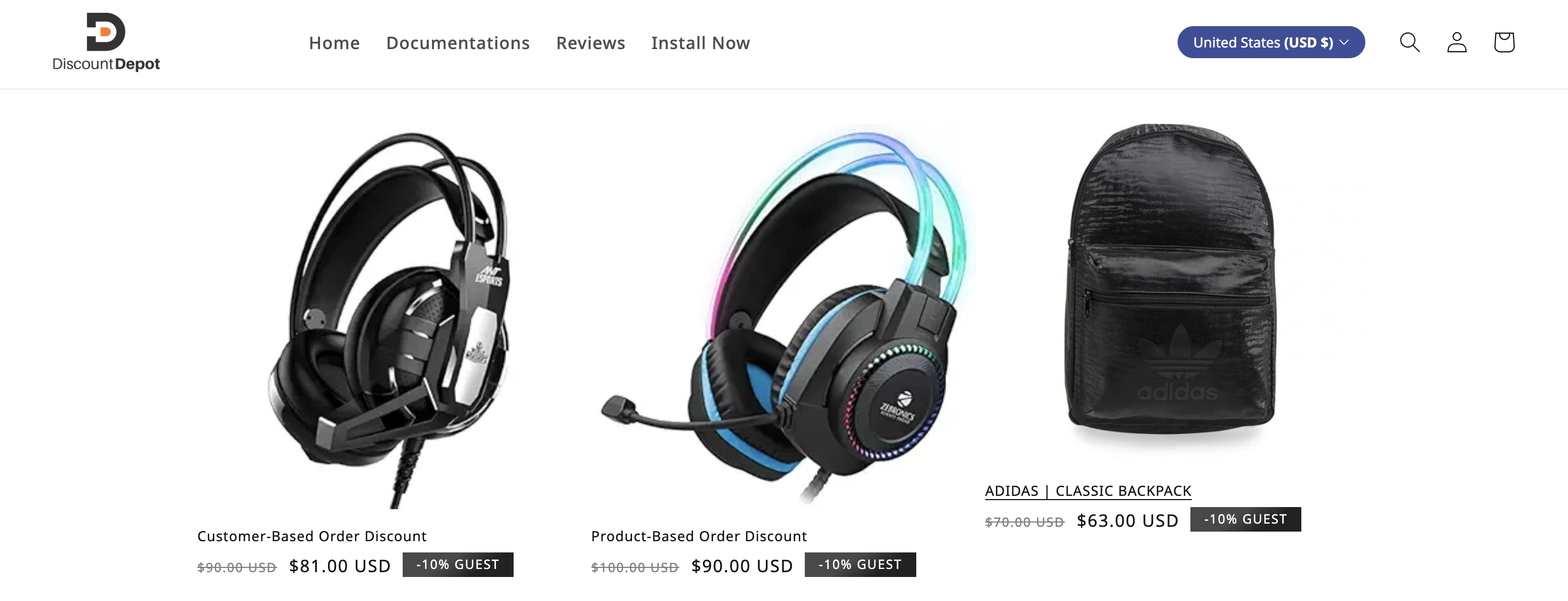
You have now added the Collection Widget to your collection page. If the eligible discounted prices appear correctly, you do not need to configure additional selectors.
If Discounted Prices Do Not Appear
Some Shopify themes use different HTML structures and CSS classes for their product cards. If the Collection Widget cannot automatically identify the product cards, you may need to configure the Product Card Selector.
Step 1: Return to the Shopify theme editor and open the settings for the Product Widget.
Step 2: Locate the Product Card selector field in the widget settings.
Step 3: Enter the CSS selector that identifies an individual product card in your collection grid.
You can use one of the following examples if it matches your theme:
- Product card class: .card-wrapper
- Nested product card selector: main .product-card
- Cards inside a specific grid: #product-grid .card-wrapper
Important: These selectors are examples only. The correct selector depends on your Shopify theme and its HTML structure. The #product-grid selector typically identifies the entire product grid rather than an individual product card. Use a selector that targets the repeating product card elements within the grid.
Step 4: Click Save in the top-right corner of the theme editor, refresh the collection page, and check whether the discounted prices appear.
You only need to enter the appropriate CSS selector in the widget settings. You do not need to add these classes or IDs to your theme code.
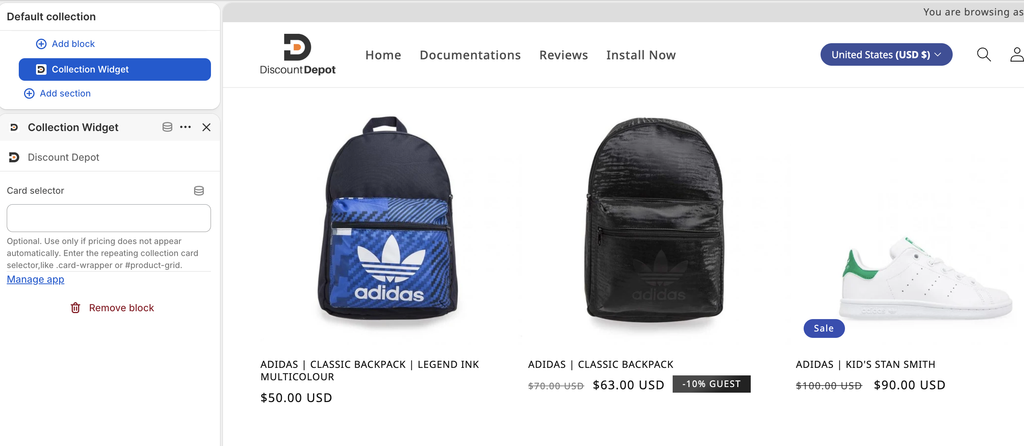
Important Notes
- Configure collection and product widgets separately. The Collection Widget is responsible for displaying discounted prices on collection pages. A working Product Widget on a product page does not confirm that the collection template is configured correctly.
- Add the widget to the correct template. Ensure that the collection template is used by the collections where you want to display discounted prices.
- Check the Product Card Selector when needed. If automatic detection does not work with your theme, enter a selector that identifies individual product cards.
- No separate Price selector is available for this widget. The Collection Widget uses the product card structure and its built-in behavior to display eligible discounted prices.
- Test collection interactions. If your theme supports filtering, sorting, or loading more products, verify that the displayed discounted prices remain correct when these features are used.
Need Help?
If discounted prices still do not appear on your collection page, check the following:
- Confirm that your Product Discount rule is active and enabled in Discount Depot.
- Verify that the products in the collection meet the offer’s eligibility conditions.
- Ensure that the Collection Discount Widget has been added to the correct collection template.
- If automatic detection does not work, check whether your theme requires a custom Product Card Selector.
- Save your changes and refresh the collection page to test the widget again.
If you need assistance identifying the correct selector for your Shopify theme, please contact the Discount Depot support team. We’ll be happy to help you configure the widget correctly.