Increase urgency and encourage customers to complete their purchases by displaying a countdown timer with your discount campaigns. The Countdown Timer can be fully customized and displayed either on product pages or across your entire store.
Enable the Countdown Timer
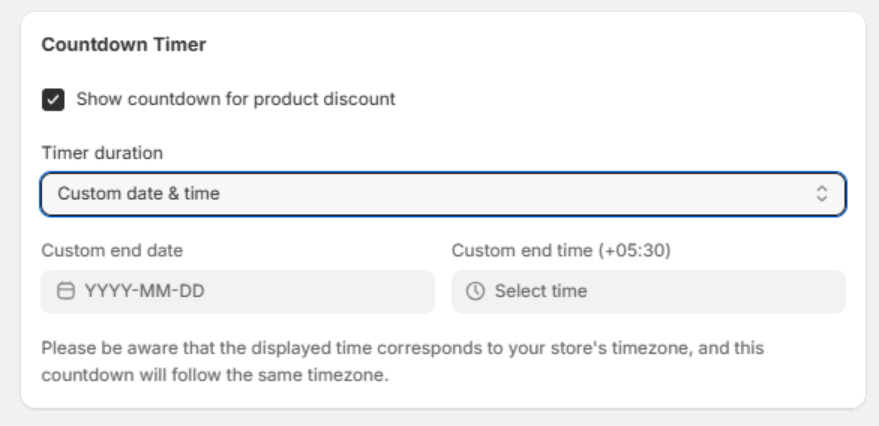
When creating or editing a discount rule, you can choose whether to display a countdown timer.
Steps
- Go to Discount Rules.
- Create a new rule or edit an existing one.
- Scroll to the Countdown Timer section.
- Enable Show Countdown Timer.
- Configure the timer settings.
- Save the rule.
Customize the Countdown Timer
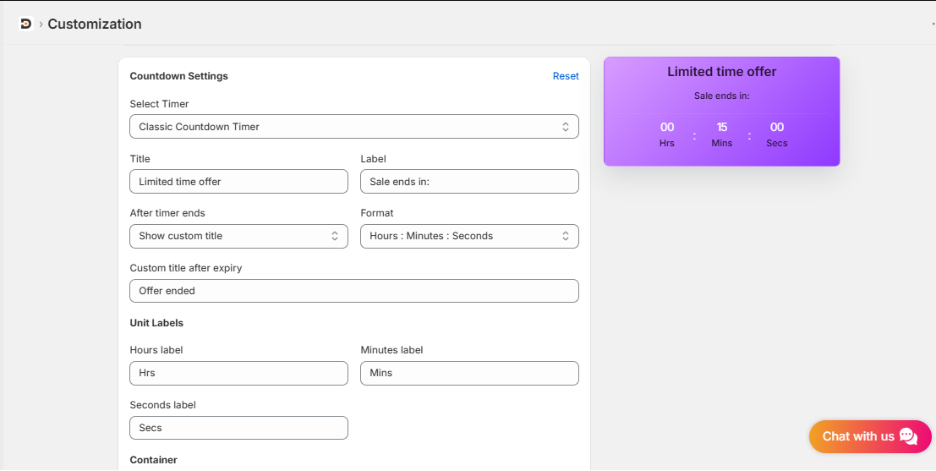
You can customize the appearance of the countdown timer to match your store’s branding.
Available customization options include:
- Template selection
- Timer text
- Text color
- Background color
- Font styling
- Labels
- Spacing and layout
- Other display settings
Your selected settings will be applied automatically when the timer is displayed.
Select a Countdown Timer Template
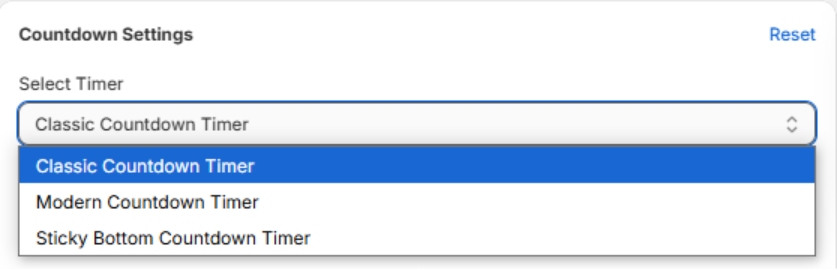
The app comes with multiple professionally designed templates.
Simply browse the available templates and choose the one that best fits your store’s design. The selected template will be displayed on your storefront once the discount rule becomes active.
Display the Countdown Timer on the Product Page (PDP)
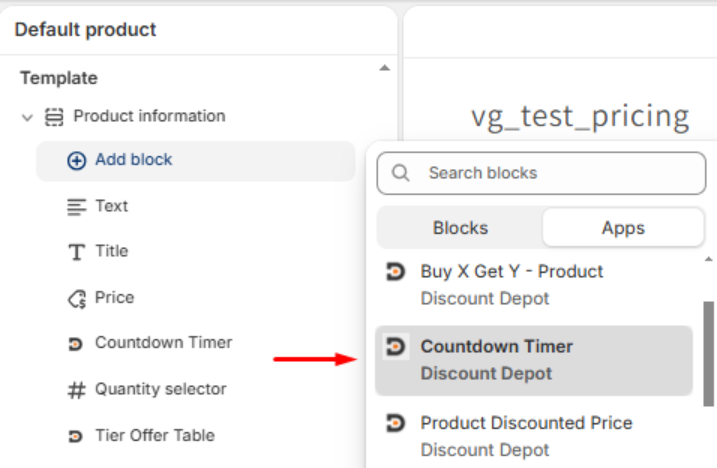
To show the countdown timer on product pages, you must add the app block to your product template.
Steps
- Go to Online Store → Themes.
- Click Customize.
- Open your Product template.
- In the Product Information section, click Add Block.
- Select Countdown Timer.
- Save the theme.
The countdown timer will now appear on eligible product pages.
Display the Countdown Timer Across the Entire Store
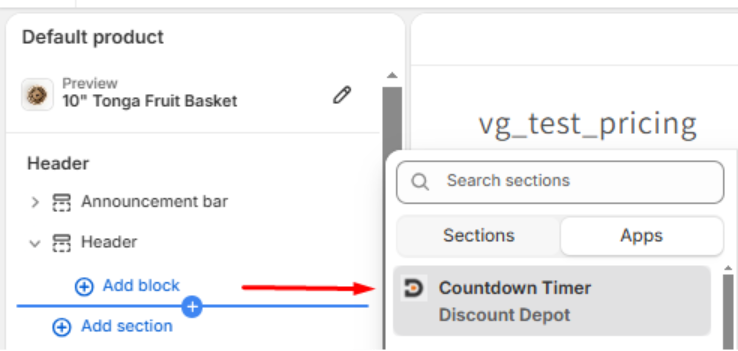
To display the countdown timer site-wide, add the app block to your Header.
Steps
- Go to Online Store → Themes.
- Click Customize.
- Open the Header section.
- Click Add Block.
- Select Countdown Timer.
- Save the theme.
The countdown timer will now appear across your store based on the active discount rule.
Important Notes
- The Countdown Timer is optional and can be enabled or disabled for each discount rule.
- You can customize the timer at any time.
- You can change the timer template without creating a new rule.
- Make sure the required app block is added to your theme; otherwise, the timer will not appear on your storefront.
- Use the Product Information app block for Product Page (PDP) timers.
- Use the Header app block for displaying the timer across your entire store.